Category Archives: Featured Feature

The Second Screen

tonight

*Photo by Robert S. Donovan: http://www.flickr.com/photos/booleansplit/

How many times have you grabbed your tablet or laptop while watching one of the too many crime shows on television because you wanted to google something you saw to see if it was true? Did you watch the rest of the program with your technology in-hand, your attention vacillating between screens? If  yes, then you’re definitely not alone.

A while ago, television networks figured out that huge portions of viewers watch shows on their television- while using a laptop, tablet or smart phone in one way or another. Viewers had Facebook and Twitter open and sometimes visited program websites. Basically, people are able to consume content from more than one screen at a time. One response was to give shows, even individual episodes their own hashtags encouraging audiences to interact with each other during programming. Some websites began including the supplementary content they thought people would look up on their own anyway.

The great thing about this technology is that it’s mobile. Very few people sit at a desktop while watching television, it’s just not as comfortable as watching our favorite shows from the sofa, recliner or bed. Nearly everybody who’s got a web-enabled mobile device brings it everywhere with them. We’ve also been seeing these devices at lectures, presentations, sporting events, political rallies- you name it- for years now. And as event planners are wising up to harness this technology, we’re seeing the second screen come in to play in all kinds of places.

Have you ever been to a sporting event and had lacked a decent view of the jumbotron or whatever giant(ish) screen the venue used for replays and all the extra facts about a player or the game itself? Frustrating, isn’t it? Wouldn’t it be better if you could just glance at your phone and see what’s going on? Political events aren’t any different. We’ve all listened to someone that we support and have still felt the need to look something up just to make sure they weren’t exaggerating, even just a little. How would you, as part of the voting public feel if a candidate pushed sources from his speech directly to your phone while speaking? Would that increase your trust in them and their causes? It’s better than trying to remember what to look up when you get home, isn’t it?

TEDxHelsinki: audience

*Photo by Mikko Reinikainen: http://www.flickr.com/photos/mtreinik/

This is the second screen. It’s supplementary in so many situations.

2013 brought about a huge adoption of BYOD (Bring Your Own Device) in the workplace and at events. People prefer to use the technology they’re familiar with. Thus far, predictions are pointing toward increased use of audience devices to get people engaged during events in 2014. Unfettered access to wifi and charging stations have already become mandatory at any noteworthy event, because nothing’s worse than trying to work with substandard wifi or panicking over nearly dead devices then fighting with a perfectly nice stranger who needs the same outlet you do for exactly the same reason.

The way we experience events (even remotely) will change as planners think ahead and encourage us to engage online- realtime. Really, there are only two ways to engage users on their own devices. Planners and presenters can enable them via web browsers on devices or using apps. A differentiator in which will succeed and which won’t is the ease of getting connected. Few people will jump through hoops to get connected- even during an event.

As a second-screen app, SlideKlowd approaches this a few different ways.

First, if the event required registration and the event planners know their audience’s email addresses, they can simply upload all of them into the platform (with minimal effort) and send every attendee on their list an invitation. Using this, any participant can get content sent to their “second screen” with just one click.

Screen Shot 2013-12-31 at 10.52.24 AM

Otherwise, participants can join a presentation by going to join.slideklowd.com, logging in and using the Klowd Key that was created by the presenter or event planners. It’s that easy. Event planners have other options to make sure the right people are joining presentations by making them invite-only or filtering by participant email domain (@yourcompany.com, for instance). SlideKlowd offers a number of features to compliment the second-screen nature of the platform, too. Because as event planners are still learning, engagement is more than offering more content- it’s also hearing what your audience has to say.

Introducing: Widescreen Presentations

Here at SlideKlowd, we’re all about empowering people. Presenters, trainers, teachers and audiences- especially audiences. We’re also all about making things easy, because isn’t that the goal that technology and innovation work toward? So, we’ve made presenting to an audience easier than before by enabling wide-screen presentations.

In the past, SlideKlowd worked  best with presentations that were created with a 3:4 aspect ratio. But televisions, projectors and anything HD has a 16:9 screen. Powerpoint even offers that same aspect ratio. So, we decided that we’d make SK work with those devices a lot better. Now you can upload a presentation that’s either size and we’ll make it work. Heck, you can even mix and match slides of different sizes on the merge screen and they can all work together for one awesome presentation.

Screen Shot 2013-11-18 at 3.28.22 PM

Cast, the Confidence Monitor, Third Screen, Remote View Link and audience devices all respond and display your presentation without stretching or distorting your content.  So really, your life just got easier because you don’t have to change your presentations’ aspect ratios around so they can work together or in the SK platform. You get to keep your HD presentations intact and your audience benefits from it.

Introducing: Social Media Integration

Real-time news and commentary are two of the most awesome Screen Shot 2013-10-21 at 3.17.27 PMbenefits to using social media. Tweeting during sports events, award shows and conferences has become not just common, but expected of audiences. Not only does it enrich the experience, but it can be particularly useful for those who aren’t able to attend an event.

You were out of vacation time, too busy at work, or any number of other things got in the way and kept you from traveling to your favorite conference. But some coworkers, friends, or people you follow on Twitter or Facebook were able to attend. You figure you’ll be able to check out what they have to say even before they get back. Not only that, but because the planners were smart, they created a hashtag for this year’s event so people in situations similar to yours could watch the Twitter feed to catch bits and pieces of what’s going on.

SlideKlowd helps with all of that. Now, it’s possible for presenters and viewers to connect their- or their company Facebook and Twitter accounts to the platform and share with their social sphere. This is huge for participants connecting via SlideKlowd and for events or organizations that have planned and event and want to get the word out a little more.

Presenters have the option to connect their social media accounts in the admin panel and include their user handles in a presentation for audience members to connect with them on Facebook and Twitter– or cite them in a post or tweet. They also have the ability to turn social media functions off. Tweeting about a conference is one thing, but most professors don’t want their students tweeting about how awesome the day’s anatomy and physiology lesson is. The great news is that either or both Facebook and Twitter can be toggled on or off from the presentation settings menu.

Twitter and Facebook authentication is easy, secure and only need to be done once. It doesn’t matter how many presentations a viewer sits through or which organizations host the presentation- the user account will be connected until they decide otherwise.

Presenters can integrate a hashtag into their presentation and even to have it auto-populate in comments posted from the SlideKlowd platform. Social metrics have been added to the awesome analytics, so presenters can see how many times their audience tweeted or posted to Facebook using the platform.

Introducing: Klowdpic

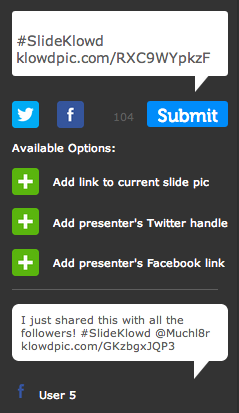
People who can’t take even mediocre pictures, yet insist on posting blurry images on Facebook and Twitter are, well, slightly frustrating. Especially when posting photos from a presentation. Out-of-focus material never did anyone any good. At all. Klowdpic enables the user to share a slide from a presentation on social media- without taking an unfortunate photo of a room that wasn’t lighted for shooting photos. They can do it straight from the platform, too.

When it comes to events, social media is your friend. Any time you can improve your attendees’ access to it, you’re doing yourself and your event a favor.

Screen Shot 2013-10-21 at 3.08.43 PM

Individuated Learning

Educational theorists have been studying various learning styles since the 1970s (and probably before then, but that’s when this stuff started getting a lot of attention). They’ve been searching for ways to maximize the time and resources that schools and companies devote to eduction and training- because those are huge investments for any kind of organization. Most of these researching, theorizing types would agree that there are three main methods by which individuals take in and learn information: seeing, hearing and and doing.

Screen Shot 2013-10-15 at 11.25.11 AM

Visual learners are thrilled to see graphs, charts, lines, colors and images. They’re the people who’s eyes are glued to the screen while you present. Spatial relationships are also significant. If your screen is too small or too far away, it can be a huge detriment to learning.


Screen Shot 2013-10-15 at 11.25.00 AM

Next, you’ve got the auditory learners. Not only do they retain information better by hearing it, but also by speaking. Many of them read aloud to make sure they get the information they need. Most auditory learners don’t care so much about what your slides look like as much as they care about what you say- and how you say it.


Screen Shot 2013-10-15 at 11.25.25 AM

The third group is kinesthetic learners. People who learn this way have struggled the most in the past with traditional classrooms. They want to get their hands dirty and would rather be showed how to do something than told.

As a teacher, trainer or speaker, you’ll have all three of these learning styles in every single group you connect with. And it’s on you as the expert in the room to make sure they get the information you have. Daunting? It could be, but you’ve got great tools to work with.

SlideKlowd helps you individuate your learning by making your lessons, presentation or speech more interactive. The platform pushes your presentation to a projector screen and to nearly any of the web-enabled devices that your audience will have with them. This gets your awesomely designed PowerPoint slides up close and personal with your visual learners. They’ll love you for it and the proof will show in how well they retain your information.

Auditory learners benefit, too. Let’s start with a little secret– auditory learners hate when instructors turn away from them to write on a whiteboard. It stifles your voice and kills body language, forcing them to work harder. With a presentation that you navigate using your smart phone, you’re free to fully engage those who care the most about what you say and how you say it. Another benefit is that because most auditory learners don’t take notes, they can save your presentation to review later.

The kinesthetic learners are the people who’d bust their phones and tablets out the minute they get bored, so utilizing what they already have in their hands keeps them engaged. These guys and gals will be thrilled to be able to interact with you, the presenter using their technology. They can also take notes, tweet and post on Facebook about your presentation and keep up with the presentation while they’re at it.

Individuated learning is becoming increasingly significant in classrooms, training centers and elsewhere as educators and CEOs alike understand the necessity for their students or employees to really grasp the material they’ve been given. The smart ones are using what technology has offered them and utilizing what’s showing up, too- people’s smart phones, tablets and laptops.

People We Like: Scott Schwertly of Ethos3

Ethos3_logo_smallerScott Schwertly is the author of How to Be a Presentation God and CEO of Ethos3, a Nashville, TN-based presentation boutique providing professional presentation design and training for national and international clients ranging from Fortune 500 companies to branded individuals like Guy Kawasaki.

If Scott is not working with his team building presentations, you will find him in the pool, on the bike, or on a long run. Scott lives in Nashville, TN with his wife and three dogs. He has a B.A. and M.B.A. from Harding University.

How do you serve your clients?
We live in a business climate right now where the art and science of presentations are getting abused on a daily basis. The core purpose and reason for Ethos3’s existence is to empower presenters who struggle with building, designing, and delivering presentations. Our goal is simple: to help our clients create positive experiences through their presentations.

Who are your clients?
Our clients range from the Fortune 500 companies to the entrepreneur who is building their very first VC pitch. We provide presentation design and presentation training for some of America’s most admired brands as well as for some of today’s brightest thought leaders.

What has been one of your biggest business successes to date and why?
We take immense pride in our ability to serve our clients like no other presentation firm. Taking inspiration from the work of Michael Gerber, we have been able to streamline all of our systems making us “franchise worthy” without being a franchise so that our focus and energy isn’t on processes but rather on producing creative work.

What are you passionate about?
Presentations. Period. It’s what we do day in and day out. We are continuously trying to improve and find innovative ways to build and design the most creative and compelling messages and visuals on the planet.

What do you read?
I’m a voracious reader and am currently on track to hit 52 books in 52 weeks. My personal favorites are the works of Michael Gerber, Seth Godin, Daniel Pink, and Steven Pressfield.

Why should someone follow you on Twitter?
If you are looking for some of the best presentation tips and tricks, I highly suggest following our Twitter account at @ethos3. We blog 3-5 times a week so there is always useful information that can be learned and utilized.

Who do you like?
We happen to be big fans of Daniel Pink. His theories on work, motivation, and the future of right-brainers inspire and encourage us. Plus, he’s a fantastic presenter as well.

Ethos3

SlideKlowd 2.0 Top 10 Features

skLaunchBanner

SlideKlowd 2.0 is out!  There are over 30 enhancements and features, but here are the top 10 you need to know:

  1. Twitter and Facebook integration within the audience comment stream
    Digging Deeper: With permission from the presenter, audience members can post their comments to Twitter or Facebook along with the presentation hashtag and the presenter’s social media handle.

  2. Hashtag for presentations
    Digging Deeper:  When creating a presentation in SlideKlowd, you can add a hashtag.  This can be specific to your presentation or the hashtag of a larger event.  This hashtag is this then appended to any comments that are posted to Twitter and Facebook.

  3. KlowdPic slide sharing
    Digging Deeper:  Instead of taking pictures of your projector screen, your audience can take a “KlowdPic” of a slide and include it with a comment posted to Twitter or Facebook – along with your social media handle and hashtag.

  4. Social media traffic shown on presentation analytics
    Digging Deeper:  Our presentation analytics already show you slide-by-slide and person-by-person analytics of who was paying attention, interacting, etc.  We have now added the social media analytics as well.  When a participant posts a comment from SlideKlowd to social media, this post shows up in that’s slide’s data in the Analytics report.

  5. Ability to reorder, duplicate or delete slides
    Digging Deeper:  Once you’ve loaded a PDF of your presentation deck to SlideKlowd, you can now reorder the slides, duplicate slides or delete them.

  6. Ability to merge slides from a different deck
    Digging Deeper:  Have slides from another presentation deck you’d like to add to a new presentation? We can do that!  Simply open another deck, select the slides you want to merge, then reorder as necessary.

  7. New interactive widgets: A/B Response and Text Response
    Digging Deeper: We already have a number of interactive widgets you can add to any slide prior to or during your presentation.  We’ve added two more!  The A/B response is for a two-option multiple choice.  We’ve also added a Text Response widget. Once embedded on a slide, participants can post an open text response.  Like all widgets, both responses and non-responses are tracked and shown in the analytics.

  8. Expanded list of compatible audience devices
    Digging Deeper:  In case you have noticed, there a bunch of new smart devices on the market – and we are now compatible with almost all of them.  This includes Windows phones, “Phablets” and smaller tablets.

  9. Klowd Key can now be 4 – 16 characters, including symbols
    Digging Deeper:  We used to have a requirement for 8 characters in the Klowd Key (the key used by audience members to log in).  This has been expanded to allow 4 – 16 characters and now includes the use of symbols.

  1. New interface for applying audience interaction to default slides
    Digging Deeper:  In addition to adding interactions to slides once you’ve launched a presentation, you can now open your presentation in the “Slides” page to set  interactions and transitions. You can also “lock” interactions and transitions to each slide, so other presenters in your organization can’t change them.

10 EdTech Startups You Must Know About

Santosh Bhaskar recently wrote an article for the EdTech Review focusing on ten startups that have created platforms that enhance education. All of the technology included brings students and educators together, delivers content and helps get some serious learning done. We’re honored that SlideKlowd was included!

SlideKlowd belongs in the classroom. The platform enables teachers to harness their students’ technology and maintain attention. Educators learn what’s really engaging their students and can figure out how to drive some of their weaker points home.

Read the article here!

New and Improved: The SlideKlowd Dashboard

We like to keep things fresh. And useful. So, we updated the Admin Dashboard in the SlideKlowd platform. It’s sexy, don’t you think? Let’s talk about the changes:

Screen Shot 2013-08-09 at 10.14.58 AM

  1. New Information- Your name, date that you became a klowdie, number of presentations given, etc.  are all now displayed on the dashboard. This information could be useful for your resume or, if  you’re a supervisor, to discover how many sales presentations one of your employees has accomplished. Note also your total attendance- this is the total number of people who have participated in your presentations.
  2. Paginated Display- This shiny new section of the dashboard displays important stuff. It starts with helpful tips from the SK blog. The remaining two cover your organization’s SK information, including total presentations, attendance and average SK rating. This is convenient to see where you stand in Screen Shot 2013-08-09 at 4.50.45 PMcomparison to your organization or to understand how much you’ve contributed to your company’s efforts.
  3. Help- Everybody needs a hand here and there, right? We made a place where you can find  FAQs, Tips and Tricks, videos and our User Guides to help you look even more awesome when you use the SlideKlowd platform.

There you have it- just a few simple, but awesome updates that make using the SlideKlowd platform even better. Be sure to check it out!

Introducing: Event Invitations

Are you sitting? You might need to before you continue reading. It’s hard to believe that something as awesome as the SlideKlowd platform could ever get any better. But then we go and do something like release a new set of features. It’s okay. Breathe. We’re excited too.

The SlideKlowd platform now has Event Invitations. That’s right, you can target your audience specifically, using their email addresses. This is great for classrooms, business meetings and any situation where a specific list of people needs to have access to your presentation. It also makes connecting to SlideKlowd easier for your audience.

Grab your list of attendees- students, employees or potential clients and log in to your Klowd.com presenter account (While you’re there, take note of the pretty new dashboard. Yeah, we like that too.). While you’re creating an event, clicking the Mail icon mail icon allows you to add all the email addresses you want. Clicking the Add button drops all those people into a list that can be checked one last time before clicking the Send button.

As the presenter, trainer or teacher, you have the ability to edit the message that your audience will see in the email. Your text can be as professional, fun or demanding as you like. We think that fun works better. Just click Edit Invite before sending the invitation out. Type to your heart’s content, make sure you save your message, then send your invitations out.

Invite-only Events

If you’re presenting to the Board of Directors or maybe your company’s C-Suite and the presentation includes information that you don’t want anyone else to see, make your event invite-only. That way, only particular email addresses are given access to the event. Then, even if Bob, the CFO mistakenly forwards the invitation to his neighbor, wife, or that annoying guy down the hall, only Bob is getting in.  invite only

Filter

If you’re working with a huge group of people, typing each individual email address can take up a lot of time. Another option is to filter who can participate by email domain. For example, if you’re training a thousand of your employees about the proper way to complete their TPS reports, you can limit who can log in to the presentation to users who have an @yourcompany.com email domain. That means that even with the correct event key, nobody can access a presentation using a Yahoo, Gmail, or even a Klowd.com account.

Screen Shot 2013-07-30 at 2.55.39 PM

Now you’ve got three awesome new ways to get the right people into your event. Each works in a variety of situations. Play around and see which works best for your style or your type of event.