You’ve prepped your audience-and got everyone connected to your SlideKlowd event on their smartphones, tablets or laptops. You’ve got the Event Key displayed on your Third Screen and you’re about to blow their minds. But you wonder, “How will I know if they’re paying attention?”
In the Presenter Dashboard, notice the Pres-Alytics (Attendance) area. There you’ll see a row of ten chairs and a green number. The green number is the total number of people have logged into your event. If you have an audience with web-enabled devices, this should close to the same number of people in your session.
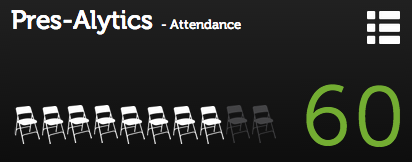
The chairs indicate what percentage of your attendees are currently engaged. As the image shows, if 80% of the chairs are lit up then 8 of the 10 chairs will be lit up.
Who’s Engaged?
We know what you’re asking: how do we know if a person is or isn’t engaged? It’s not quite magic, but it’s as close as any developers could get. Every two seconds, we send a “ping” to each device that is logged in. If they are still logged in, then all is well. If not, then after 30 seconds of inactivity by an attendee, it will be reflected in the Pres-Alytics row of chairs. Note that every disengagement by an attendee is tracked in the analytics.
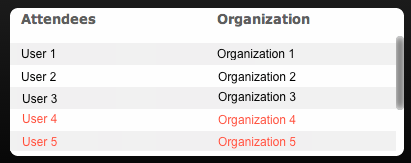
If you want to know who is or is not paying attention, just click or touch the list icon just above the green audience number to see the name of each person who has logged in to your event. If they’ve completed their audience profile, their organization will be displayed as well. Any person whose display name is in black is currently engaged. The names in red have disconnected from the presentation or need to wake their device back up.
Other Ways to Use Pres-Alytics:
As we described, the Pres-Alytics is a real-time and at-a-glance view of engagement. What else can you do with this info?
- You can use it to monitor the over-all engagement level of the session. If you notice the chairs start to go dark, we suggest that you add some interaction on the fly – or break out your “RiverDance” routine.
- If you are in a compliance or training-type presentation, you can use the Pres-Alytics to report on participation and engagement level. Then you can call them out by name and tell them to pay attention!
- If you are giving a sales or motivational presentation, you can monitor the Pres-Alytics to be sure your call-to-action is at the height of emotion. If all the chairs are lit up, ask for the deal, the donation or the vote!
After Your Session
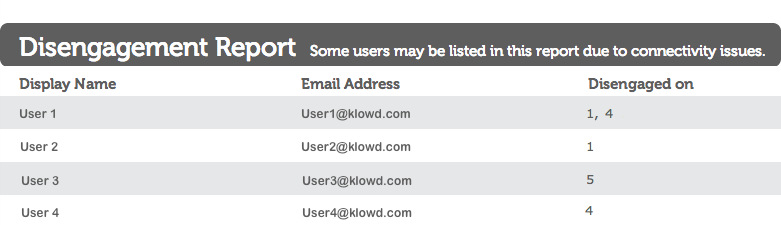
After you’re done presenting, take a look at the disengagement report in the Presentation Analytics to see what slide(s) they disconnected on. Consider your content: your slide, what you said, whether or not you had an interaction. Based on this data you can adjust and improve your next presentation.